Computer Maintenance Tips in Kenya: Top 10 Guide
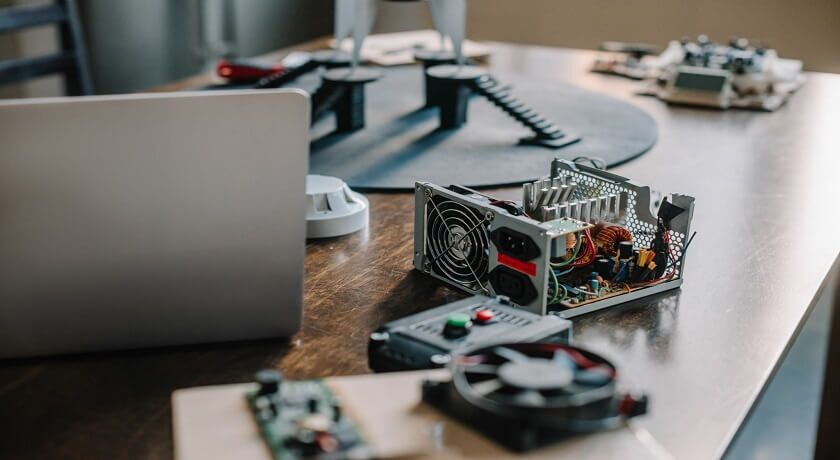
Running a laptop, desktop, or office computer in Kenya comes with a unique set of challenges. From the thick dust of Nairobi and the Rift Valley to the heavy, salty humidity in Mombasa, our environment is tough on electronics. Combined with sudden power blackouts and voltage spikes from the grid, unprotected computers can easily break down long before they should.
To save money on expensive repairs and keep your computer running fast, here is a practical guide written for everyday users.
1. Clean Out the Red Dust Safely
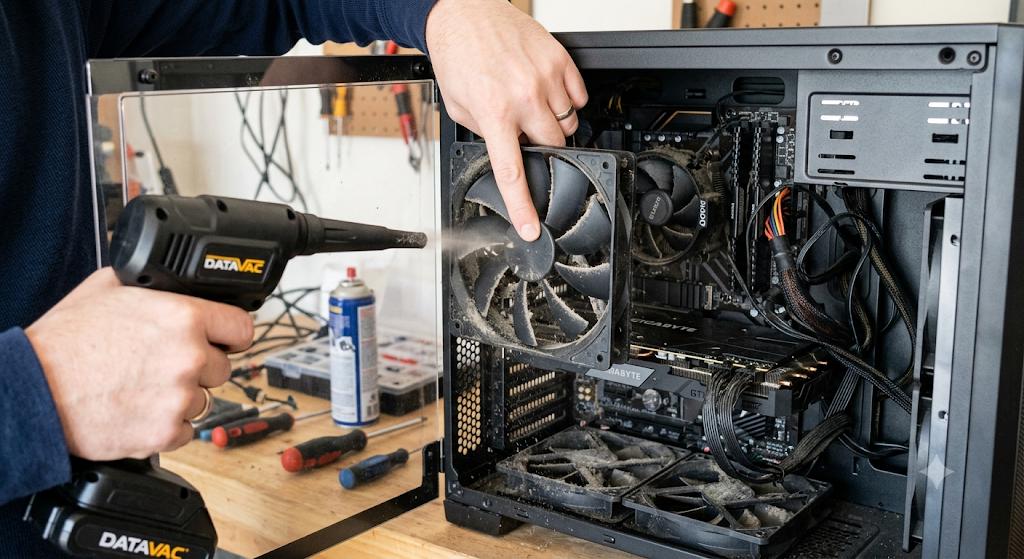
The fine red dust found across Kenya behaves like a warm blanket when it settles inside your computer. It blocks the cooling vents and traps heat around the internal processors. When a computer gets too hot, it slows down drastically to protect itself from melting.
- The Fix: Never leave your desktop CPU tower or laptop sitting directly on the carpet or floor where dust settles heaviest. Move it up onto a clean desk. Every six months, take your machine outside and use a small electronic air blower or a can of compressed air to blow out the dust from the cooling vents.
- Important Safety Step: Always hold the computer's fan blades still with a finger or a small stick while blowing air through them. Letting the fan spin wildly at high speeds can turn the fan motor into a mini-generator, sending electricity backward into the computer board and frying the delicate circuits.
2. Never Plug Directly into the Wall (Use Power Protectors)
Unstable electricity is the number one killer of electronics in Kenya. When lights dim (power drops), your computer strains to stay on. Even worse, when the power suddenly flashes back on after a blackout, a massive electrical surge can instantly melt the internal power parts of your expensive laptop or desktop.
- The Fix: Move away from standard, cheap plastic extension cables. Instead, use a tiered defense strategy:
- For Desktops & Laptops: Plug your computer into a dedicated Automatic Voltage Regulator (AVR), commonly known as a stabilizer. A good stabilizer smooths out low and high voltages without turning off.
- For Expensive TVs & Fridges: Use a specialized guard like a Sollatek TV Guard or AVS. These smart plugs completely cut off electricity when the voltage is bad and wait for a safe 3-minute delay before turning back on, ensuring the power grid has stabilized first.
3. Protect Your Inverters If You Use Solar Power
If you have installed solar panels to beat the frequent blackouts, your expensive solar inverter and batteries are still vulnerable. Lightning strikes or huge electrical spikes can travel down the long metal cables from your roof straight into your indoor solar equipment.
- The Fix: Make sure your solar technician installs a proper DC Surge Protective Device (SPD) inside your outdoor solar switchbox.
- Important Safety Step: Ensure your system has a dedicated copper earth rod driven deep into the soil. This gives dangerous lightning energy a direct, short path to escape safely into the ground before it can destroy your indoor setup.
4. Fight Coastal Humidity and Salt Rust
If you live or work near the coast in places like Mombasa, Malindi, or parts of Kisumu, you deal with very damp air. This moisture carries tiny salt particles into your computer, which slowly rusts the copper circuits, causing mysterious system crashes and permanent short circuits.
- The Fix: Keep your workstations and laptops away from open windows that face direct sea breezes. In damp rooms, try to use a dehumidifier to keep the air dry. For items you don't use every day—like cameras or spare laptops—store them inside a sealed plastic container or bag with a few moisture-absorbing silica gel packets (the little white pouches often found inside new shoe boxes).
5. Keep a Close Eye on Your Laptop Battery
The combination of hot Kenyan weather and heavy everyday use causes laptop batteries to wear out over time. When a battery goes bad, it doesn't just die—it can actually release gases inside its protective wrapper, causing the battery to swell up physically. This swelling can warp your laptop case, crack the plastic, or jam your trackpad.
- The Fix: Check your laptop's shape regularly. If you notice the keyboard bulging upward, the bottom casing splitting apart, or the trackpad becoming hard to click, your battery is likely swelling. Stop using it and take it to a technician immediately. Also, avoid leaving your laptop charging all day on soft surfaces like beds or cushions, as these block the bottom air vents and trap destructive heat.
6. Give Your Computer Room to Breathe
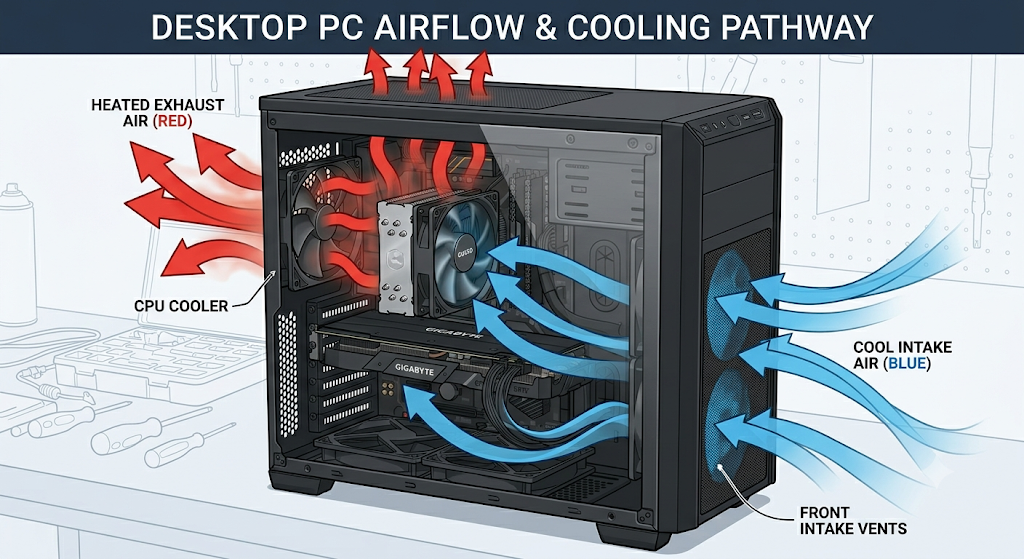
Squeezing your desktop computer deep inside a tight wooden cupboard or pushing your office Wi-Fi routers flat against a concrete wall creates dangerous hot-air pockets. Without fresh air circulating, the machine will quickly overheat and freeze mid-work.
- The Fix: Always leave at least 10 to 15 centimeters of open space on all sides of your computer, television, or internet router. Make sure the small air vents on the back and sides are completely uncovered so hot air can escape freely.
7. Keep Your Hard Drive Clean to Avoid Slowdowns
Modern computers use Solid-State Drives (SSDs) for storage. Unlike old computers, these drives are entirely electronic. However, if you fill an SSD to maximum capacity, it struggles to manage data and slows down significantly, while wearing out the internal storage memory much faster.
- The Fix: Try to never fill your primary local storage drive past 85% capacity. Leaving 15% to 20% of free unallocated space allows the computer's background optimization system to clean up old files efficiently and keep your machine running at normal speeds. Delete old downloads, clear your recycling bin weekly, and move large movie or photo folders onto an external hard drive.
8. Follow the 3-2-1 Backup Rule for Important Files
Hardware can be replaced, but lost data cannot. A sudden power cut during a rainstorm, a accidental drop, or a bad virus can corrupt your hard drive instantly, wiping out years of business records, school projects, or family photos.
- The Fix: Protect your files using the standard 3-2-1 backup method:
- 3 Copies: Keep three separate versions of your important data.
- 2 Different Places: Save the copies on two different types of storage (for example, one copy on your laptop and a second copy on a portable external USB drive).
- 1 Off-site: Store at least one backup completely away from your physical house or office—such as saving it securely in a cloud storage service like Google Drive or OneDrive.
9. Inspect Your Computer for Bulging Parts
Inside your computer's power unit and motherboard are tiny electronic barrels called capacitors that help control voltage. Over several years, intense heat and minor power spikes can cause these little barrels to wear out, fail, and leak.
- The Fix: Once a year, when you or a technician opens up the computer to clean out the dust, take a quick look at the circuit board with a torch. A healthy capacitor should have a perfectly flat, clean metal top. If you spot any tiny barrels with rounded, bulging tops, or notice a crusty brown rust-like residue around their base, the part is failing. Replacing that cheap part early prevents it from popping and destroying the entire computer later on.
10. Run a Clean System to Prevent Overheating
Computer maintenance isn't just about cleaning physical dust; it's also about software. When a computer is infected with malware, hidden viruses, or bloated with dozens of unnecessary apps running in the background, your processor is forced to work at 100% capacity all the time. This continuous strain makes the laptop run extremely hot and shortens the life of the internal fan.
- The Fix: Be careful when downloading software from unverified free websites, as these often bundle hidden viruses that hijack your machine. Install a reputable antivirus program, keep your Windows or Mac operating system updated, and uninstall any old apps you no longer use to keep your processor running cool and efficient.
Simple Maintenance Checklist for Everyday Users
Follow this quick schedule to keep your devices healthy and save on repair costs:
- [ ] Every Day: Unplug your laptop charger once the battery is full; don't leave it charging on a bed or sofa.
- [ ] Every Week: Empty your computer's Recycle Bin and delete temporary internet files to free up space.
- [ ] Every Month: Check your extension cables and power stabilizers to ensure all indicator lights show safe voltage.
- [ ] Every 6 Months: Gently blow out the accumulated dust from your computer's side vents and fan intake paths.
- [ ] Every Year: Run a quick visual check on your laptop's casing to ensure the battery isn't swelling or warping the frame.
Frequently Asked Questions (FAQ)
Can I use a regular house vacuum cleaner to pull dust out of my laptop?
No, you should never use a household vacuum cleaner on a computer. The plastic nozzles on home vacuums build up high amounts of static electricity. If the nozzle touches the ports or edges of your laptop, that static charge can jump directly into the motherboard and permanently break your device. Use a dedicated electronic blower or canned air instead.
Why does my power stabilizer make a clicking sound during heavy rain or storms?
The clicking sound is actually a good sign—it means your stabilizer is working. It indicates that the internal switches are actively stepping in to correct sudden drops or spikes in the wall electricity, ensuring only safe, steady power reaches your plugged-in computer.
How do I know if my laptop battery needs a replacement?
If your laptop dies the moment you pull out the power cable, if it only lasts 20 minutes before asking for a charger, or if the mouse trackpad physically lifts up and becomes hard to click, your battery has degraded or swollen and needs a replacement immediately.
Is a basic extension cable with a "surge switch" enough to protect my PC in Kenya?
Usually, no. Cheap extension power strips with a simple red switch only offer minimal protection against minor electrical noise. They cannot handle the severe voltage drops or massive lightning surges common on our regional grid. For real protection, you need a dedicated AVR (stabilizer) or a digital surge guard.